
Start from a prompt
Generate an initial direction instead of building every first screen manually.
Pixelmost is built for early app visuals: screens, concepts, layout direction, app icons, and export-ready mockups for product reviews or pitch decks.
Start from a prompt, refine with UI components, and produce mockups that are easier to discuss with clients, teammates, and stakeholders.
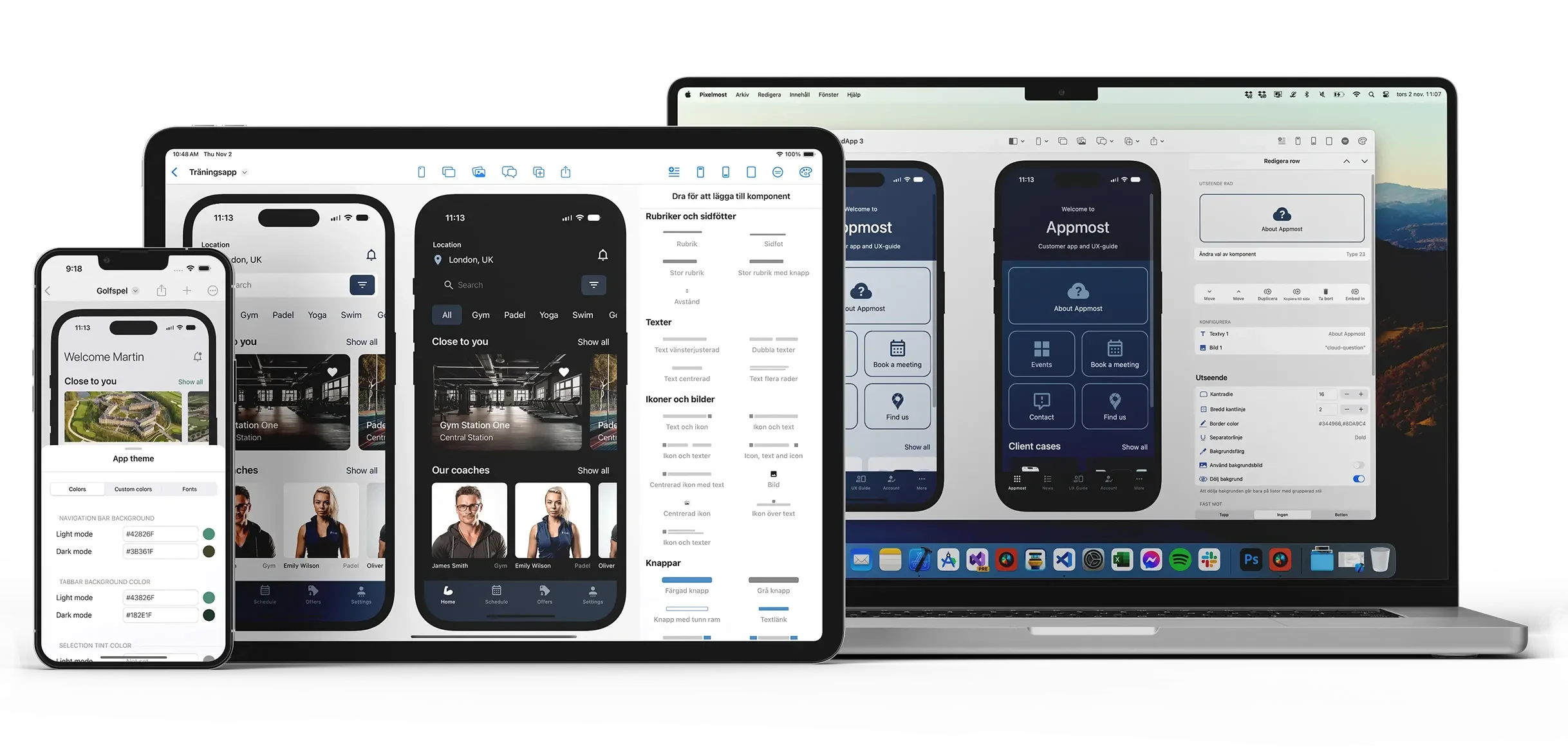
The main value is speed without losing structure. You can move from a rough idea to something presentable fast, while still keeping enough control to refine the details.
Generate an initial direction instead of building every first screen manually.
Adjust screens with reusable mobile interface patterns instead of redrawing common layouts.
Generate app icons and color directions that match the look of the concept.
These are the kinds of mockup jobs Pixelmost is well suited for.
Create screens for early team discussion when the product direction is still changing.
Export cleaner visuals for decks, handoffs, and stakeholder walkthroughs.
Work through screen ideas and visual hierarchy before design or engineering gets locked in.
A useful mockup is more than a polished first screen. It should make the product idea easier to compare, discuss, and revise before the team commits to implementation.
Choose one task such as onboarding, browsing content, or completing a purchase. A narrow journey gives the generated screens a clear purpose and keeps the first review focused.
Describe the app, audience, and main screens in a prompt, or start from a template. Pixelmost creates an initial screen set that you can refine instead of treating as a finished answer.
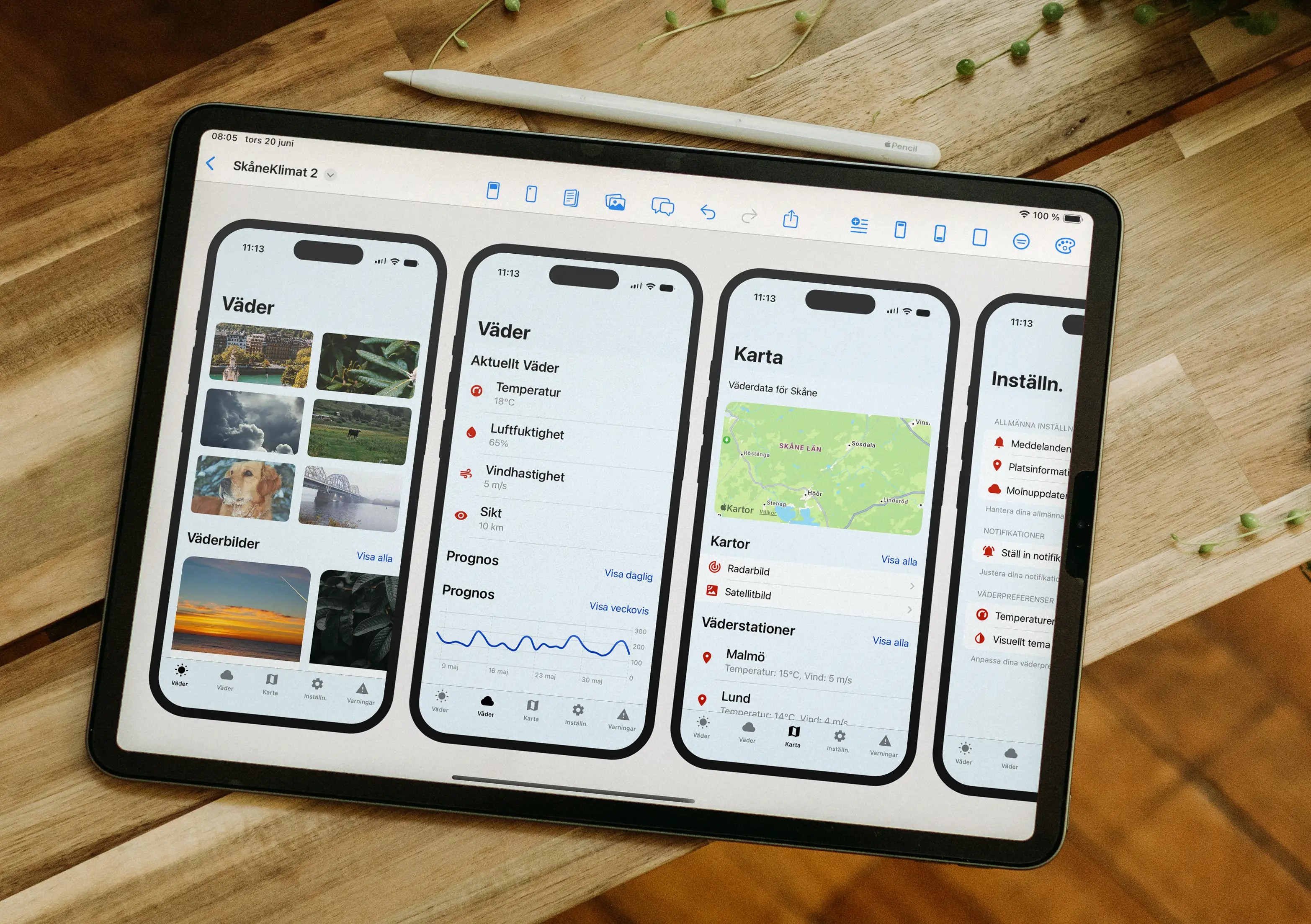
Adjust text, images, components, colors, and spacing so the screens share a consistent direction. Use All Pages to compare several screens and Single Preview when one page needs closer attention.
Check the journey in Navigation Mode and use Graph View to inspect how pages connect. Then export individual PNG screens or arranged compositions for reviews, presentations, or App Store material.
A mockup answers visual questions: what the screens contain, how the hierarchy feels, and whether the direction is clear enough to discuss. A prototype adds the journey between those screens. When the review shifts from appearance to navigation, use Pixelmost's prototype and Graph Mode workflows to check links, dead ends, and the order of the experience.
If you are comparing workflows, these are the closest next steps.
See how Pixelmost moves from static mockups into structure review, interactive flows, and prototype work.
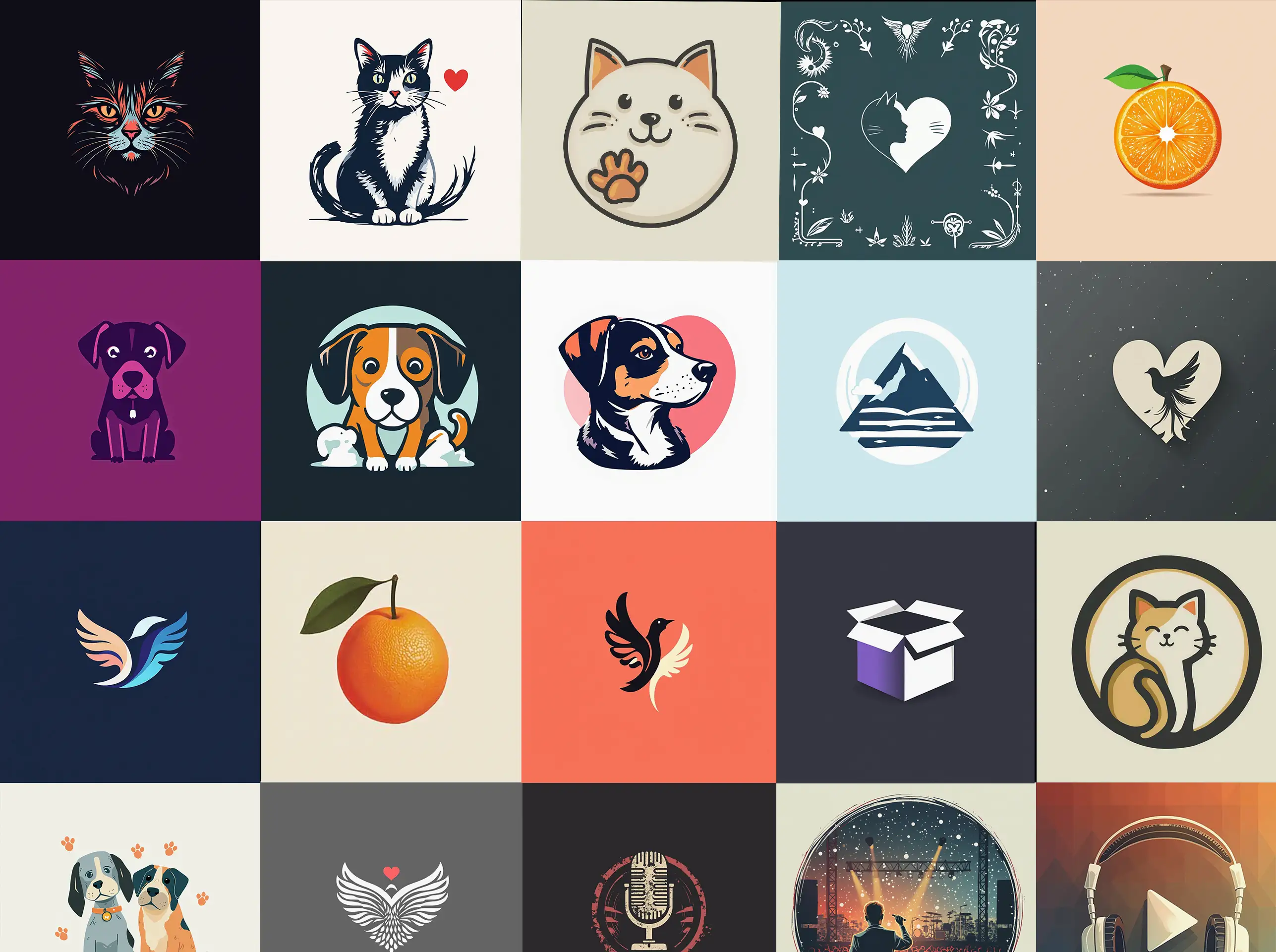
Generate app icons and logo variations that fit the visual direction of your mobile concept.
Read the icon workflow guide if your main job is generating assets for the app concept.
Learn how to inspect screen connections and find missing or confusing paths before a mockup moves into testing.
Create screens quickly, refine what matters, and export visuals that are easier to review and present.